> For the complete documentation index, see [llms.txt](https://help.smartrr.com/docs/llms.txt). Markdown versions of documentation pages are available by appending `.md` to page URLs; this page is available as [Markdown](https://help.smartrr.com/docs/support/customer-account-portal/edit-change-payment-method.md).
# Edit/Change Payment Method
Smartrr account portal vs Shopify's new account portal
## Edit Payment Method in Smartrr
This process is outlined in the [**EDIT PAYMENT**](https://help.smartrr.com/docs/support/customer-account-portal/manage-subscriptions#edit-payment-how-do-customers-edit-their-payment-method-for-their-subscription) section of the [**Manage subscriptions**](/docs/support/customer-account-portal/manage-subscriptions.md) help doc. The steps remain the same, which includes:
* Going to your subscription in the Smartrr portal under the **Subscriptions** tab.
* Click on the "Manage subscription" button.
* Select the "Edit payment" action shown in the popup modal.
* Follow the additional steps shown in the email sent to your inbox (email address tied to your subscription).
The email received from following these steps, is coming from Shopify. Smartrr has no control over the content of this email, as Shopify handles the payment processing and stores all payment methods under the customer's profile.
Payment gateways are changing how they handle payment method updates. Payment methods are usually updated immediately to the customer's profile in Shopify. However, recently, some are only syncing the update when the customer creates a new subscription with the newly added payment method.
The current experience that a merchant would have with Shop, is that they will be redirected to Shop's "Subscriptions" page after following the actions in the received Shopify email (email received after submitting payment method edit request in Smartrr). Shop's "Subscriptions" page only shows subscriptions created in Shop. Therefore customers may not see their subscriptions, or any action to change their payment method in Shop.
## Shopify's New Customer Accounts
Shopify's new customer accounts template houses a **Payment methods** section that makes it easier for customers to update their payment methods that are linked to subscriptions:
## Edit Payment Method in Shopify
**N.B.** This method is available for merchants who have switched to the new customer accounts template (found under the "Customer Accounts" setting in Shopify).
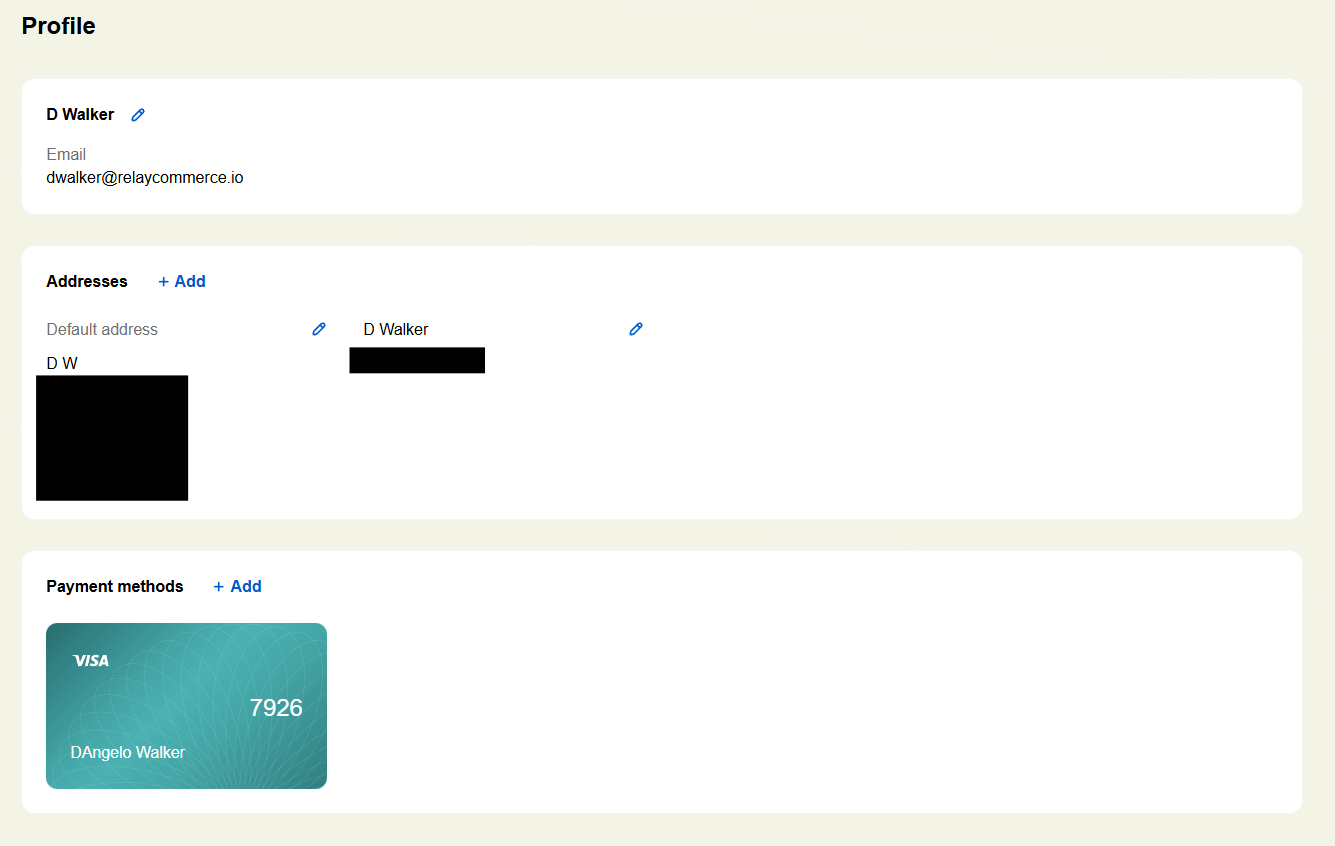
The new Shopify customer account portal, provides a "Profile" page where the "Payment Methods" setting is found:
On this page, customers will see:
* Their email address
* Addresses
* Payment methods
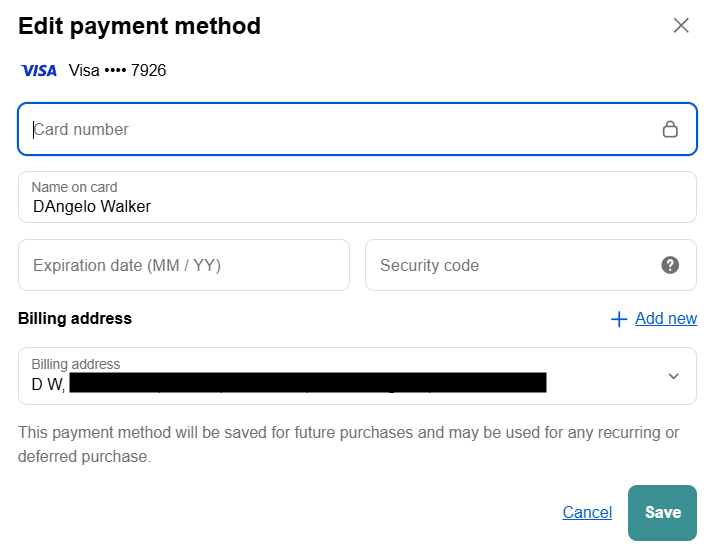
Click on your virtual card to edit the card's details, or click on "+Add" next to "Payment methods" to add a new payment method. If editing your current card, you will get this window:
Click on the "Edit" link to change your card information (you will get this same window when adding a card):
Enter your details and hit save. Once saved, the update is immediately made to your customer profile in Shopify, making it available in Smartrr as well, for your subscriptions.
---
# Agent Instructions
This documentation is published with GitBook. GitBook is the documentation platform designed so that both humans and AI agents can read, navigate, and reason over technical content effectively. Learn more at gitbook.com.
## Querying This Documentation
If you need additional information that is not directly available in this page, you can query the documentation by asking a question.
Perform an HTTP GET request on the following URL with the `ask` and `goal` query parameters:
```
GET https://help.smartrr.com/docs/support/customer-account-portal/edit-change-payment-method.md?ask=&goal=
```
`ask` is the immediate question: it should be specific, self-contained, and written in natural language.
`goal` is what the user is ultimately trying to achieve, the reason they need the answer. Sharing it helps GitBook give you a better, more relevant answer. A goal is most helpful when it describes the outcome the user wants rather than restating the question. For example, with `ask=how do I create an API token`, a goal like `automate deployments from our CI pipeline` lets GitBook tailor the answer to that use case.
The response will contain a direct answer to the question and relevant excerpts and sources from the documentation.
Use this mechanism when the answer is not explicitly present in the current page, you need clarification or additional context, or you want to retrieve related documentation sections.